Try Plen without an account
Try Plen, on plen.work, opens an example planning in your browser. Nothing is sent anywhere until you choose Continue with email, which keeps the planning in your account.
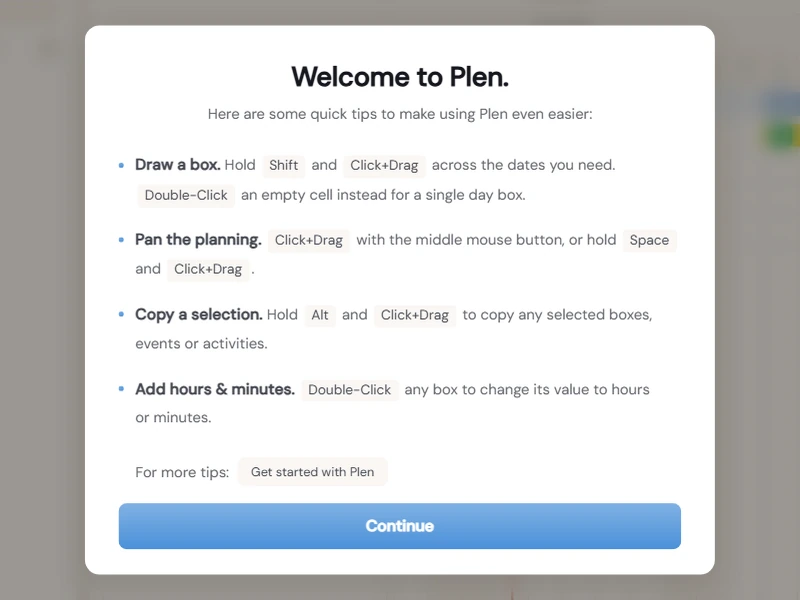
Try Plen, on plen.work, opens an example planning in your browser. Nothing is sent anywhere until you choose Continue with email, which keeps the planning in your account.
In the Project Library on the left, click + Add Project. Double-click the name to rename it, and click the colour swatch to pick its colour.
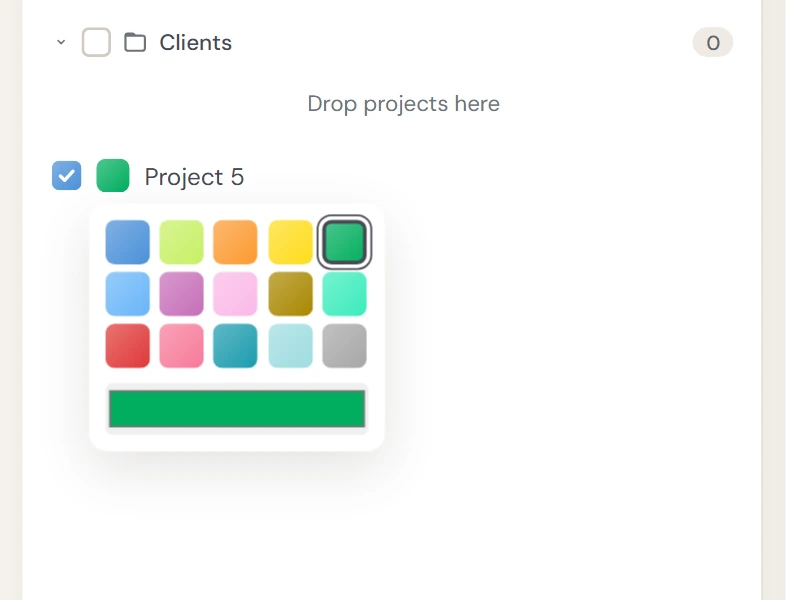
Right-click a project row for New Activity or New Group, or click the small + at the end of the row. Rows nest four deep: project, group, subgroup, activity.
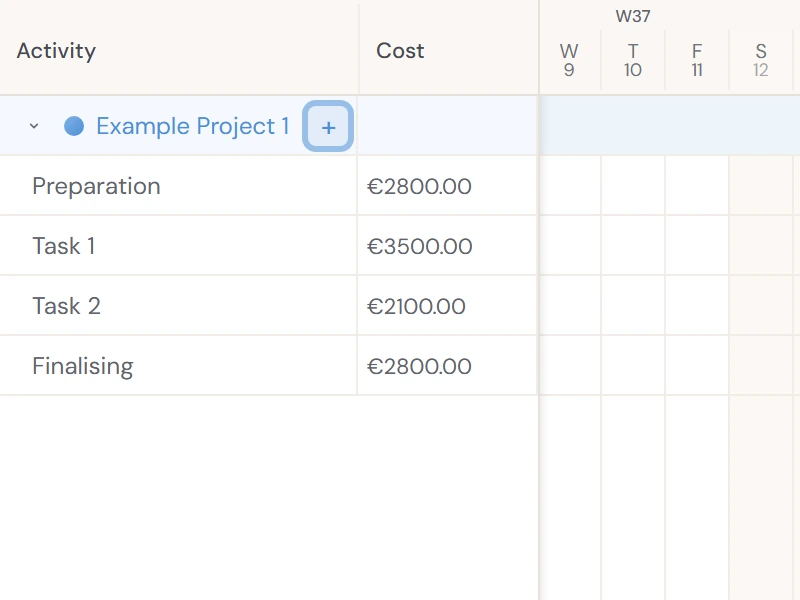
Drag with the middle mouse button, or hold Space and drag, to pan. Ctrl + scroll zooms, Shift + scroll moves sideways. Ctrl + 0 fits everything on screen.
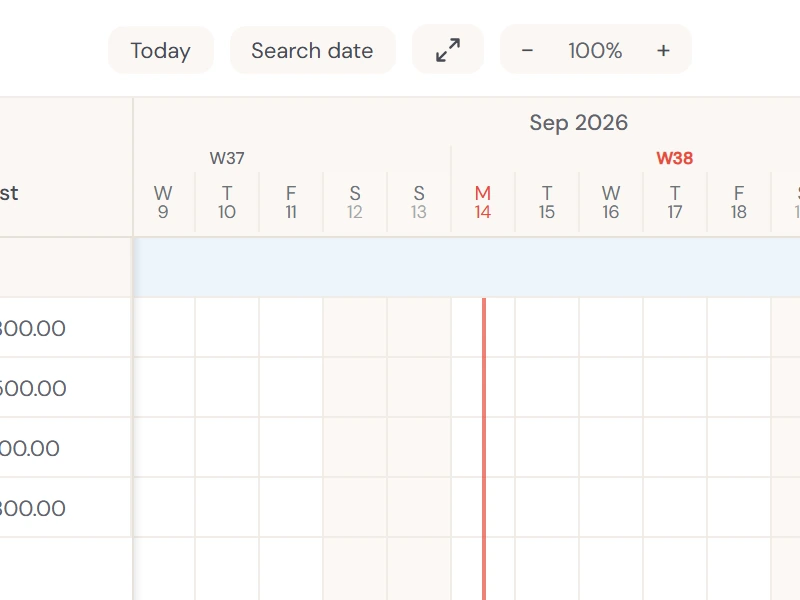
On an activity row, hold Shift and drag across the dates you need. Double-click an empty cell for a one-day box instead.
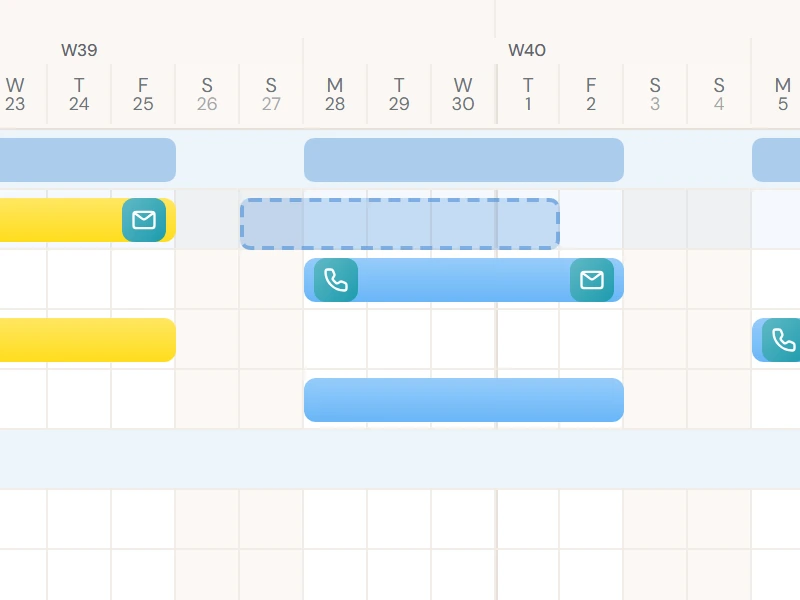
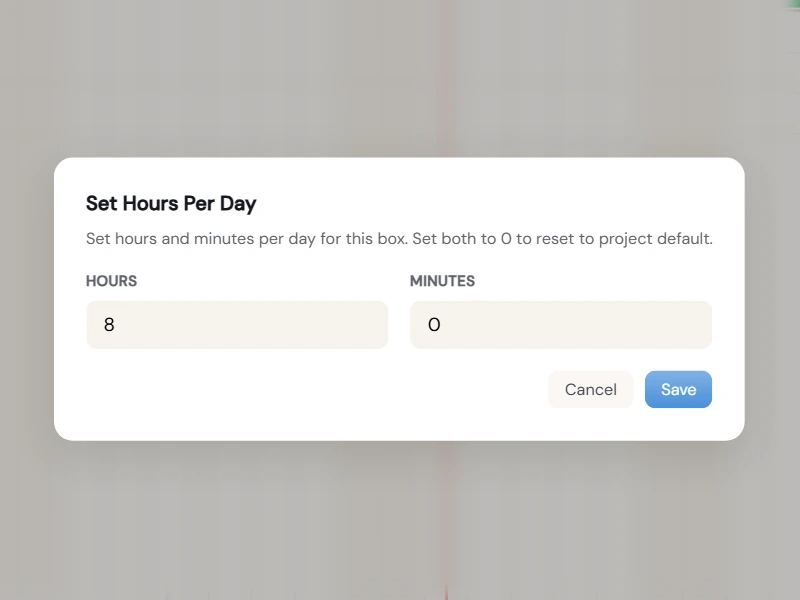
Double-click a box to give it its own hours for the day, or minutes. It overrides the project's Hours/day for that box only, and the Overview follows.
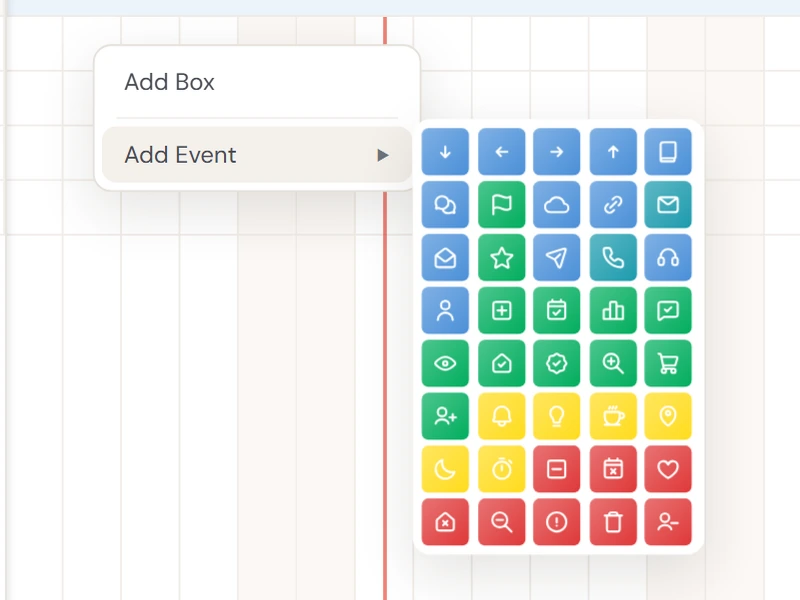
Right-click a day on an activity or group row and choose Add Event, then pick an icon. There are 40 icons in four colours. Drag an event to move it.
Hold Alt and drag to copy a box, an event or a whole selection. Alt + drag also duplicates rows in the activity list. Ctrl + C and Ctrl + V paste at the last place you clicked.
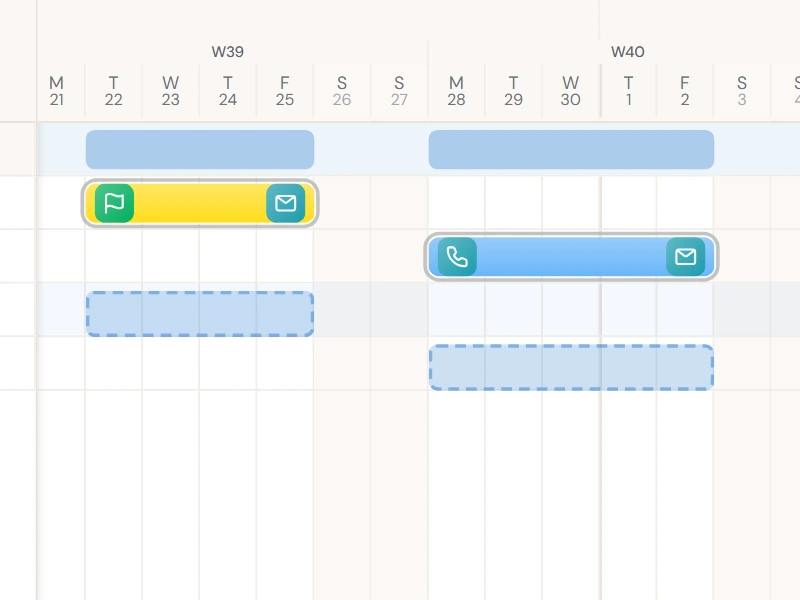
Drag a box sideways to change its dates, or up and down to another row. Drag its left or right edge to resize. With a box selected, the arrow keys nudge it a day, Shift + arrow a week.
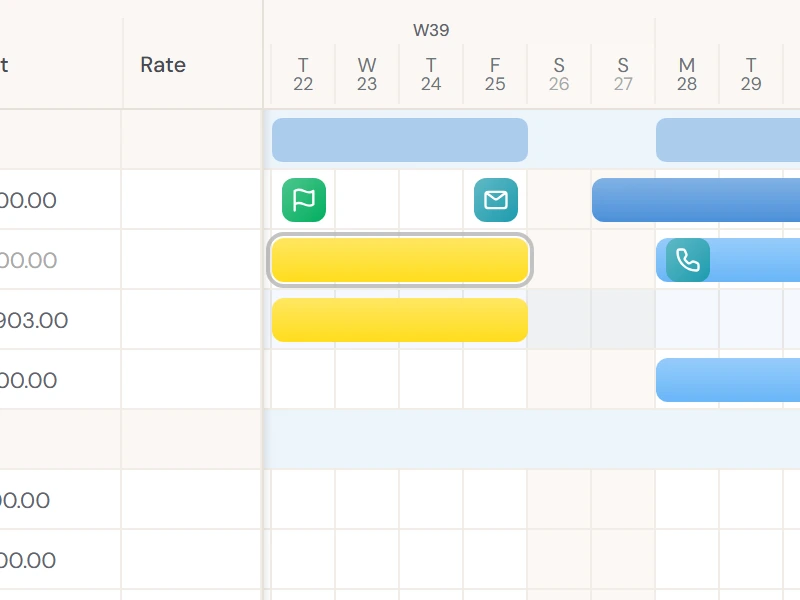
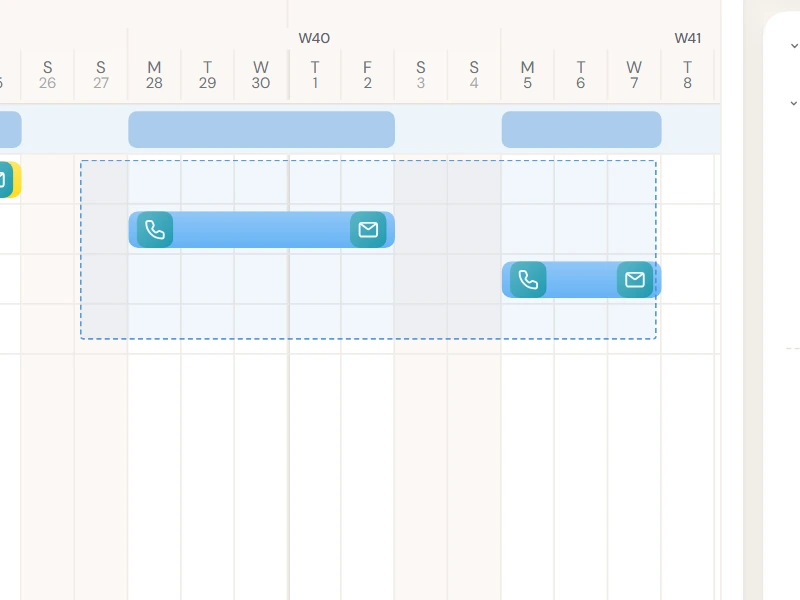
Drag on an empty part of the grid for a rectangle, Ctrl + click to add one, Shift + click for a range, Ctrl + A for everything. Right-click a row for Select All in Row, or a project for Select All Boxes.
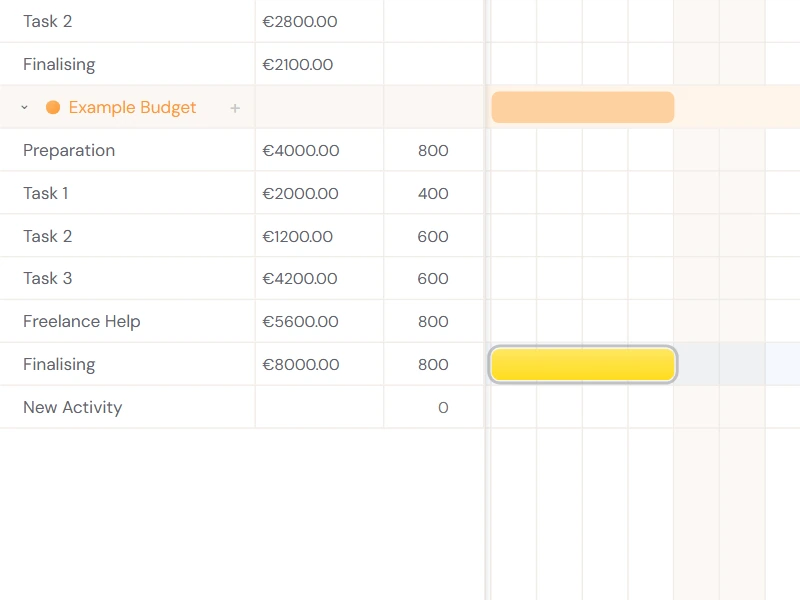
Drag a box past the bottom of a project's last row and hold. Plen adds a new activity under it and drops the box there.
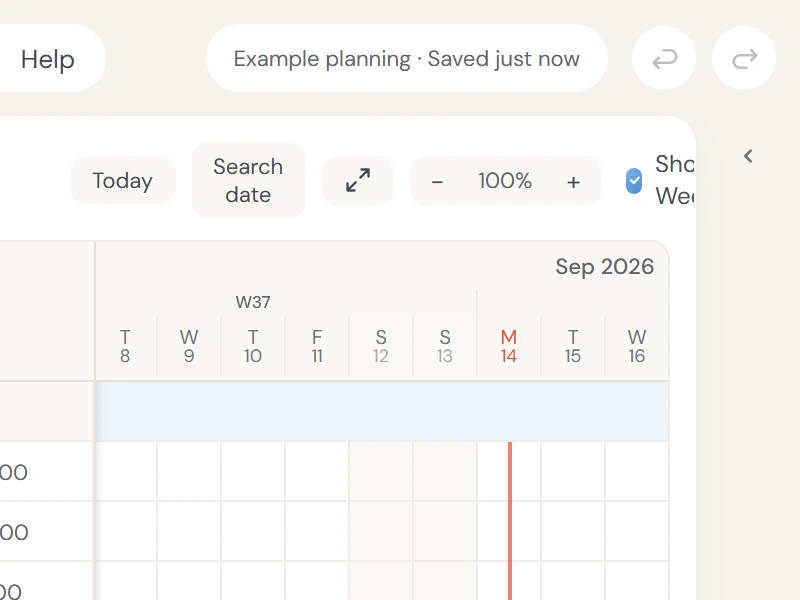
Plen saves two seconds after your last edit, and the top bar tells you so. Ctrl + Z undoes up to 50 steps, and a whole drag counts as one.
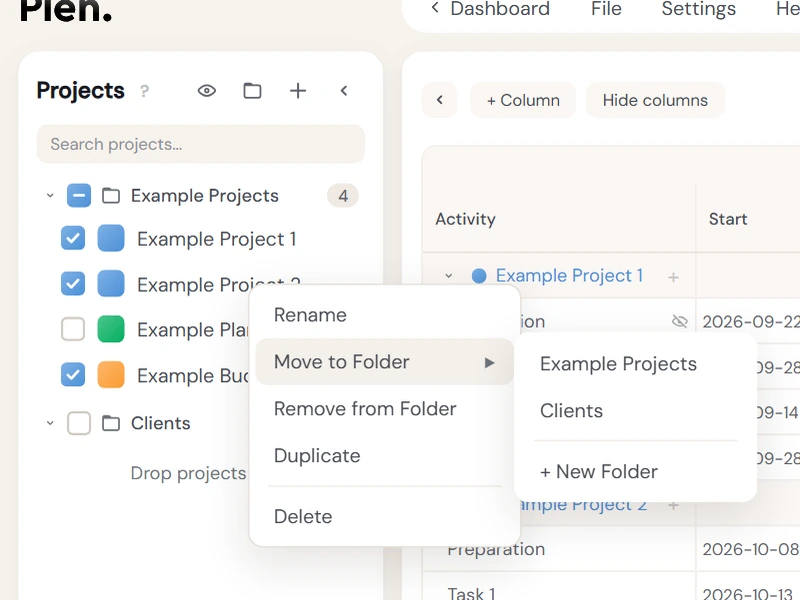
Click + Add Project at the top of the library. Each project gets a checkbox, a colour and its own options panel on the right. Right-click it for rename, duplicate, move to folder and delete.
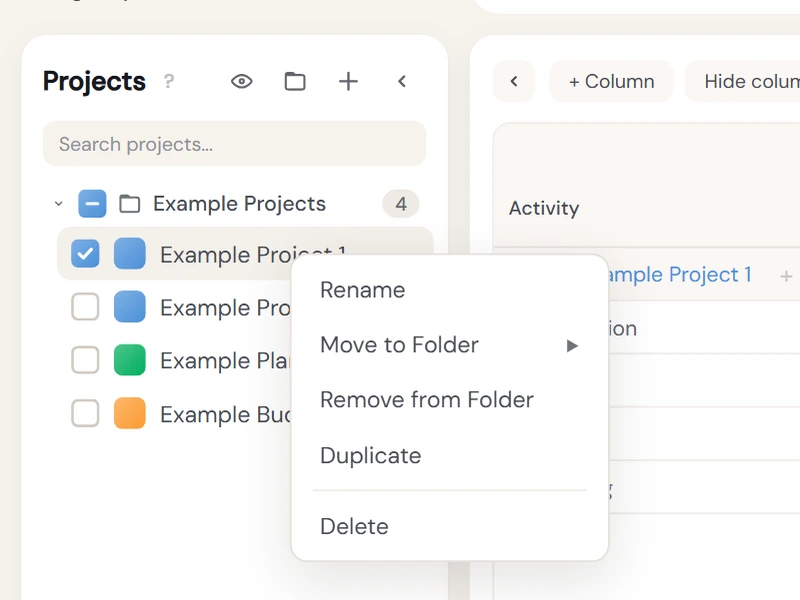
Click Add Folder and drag projects into it. Folders nest, collapse with a click and show how many projects they hold. A folder's checkbox shows or hides every project inside at once.
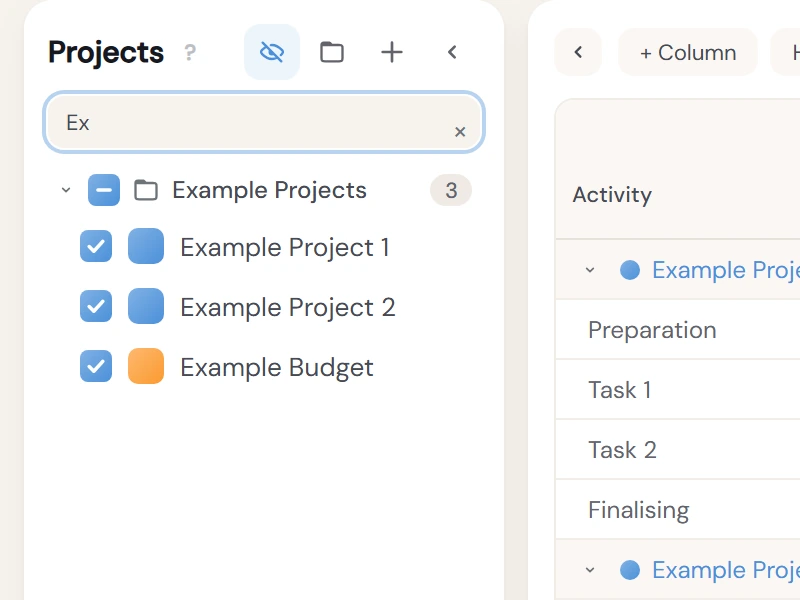
The checkbox next to a project shows or hides it on the sheet and in the Overview. The eye button, Show visible only, narrows the list to what is on the sheet. The search box filters by name.
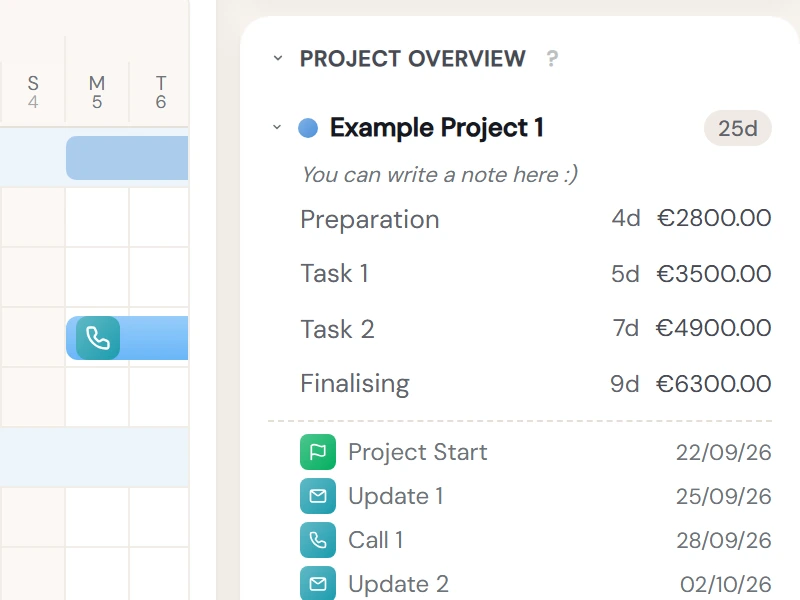
The Overview lists every visible project with its activities, their time and, when tracked, their cost. Each project's events sit below it, and Total Time and Total Cost close the list. It updates as you draw.
Project options, in the right sidebar, has a part for every project, named after it and marked with its colour. Each holds that project's Time, Costs and Overview settings, and nothing in it affects other projects. Fold the section to fold them all, or fold one project on its own.
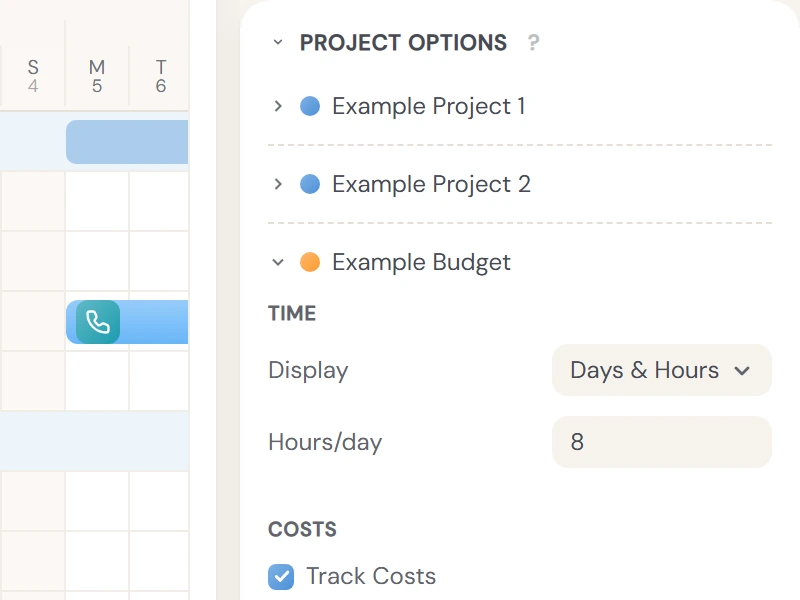
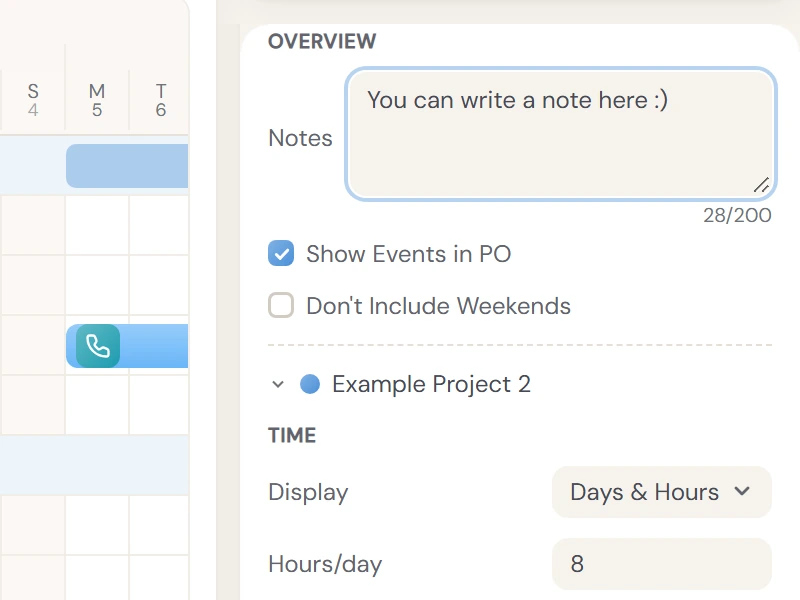
Display shows time as Days & Hours (1d 4h) or Hours only (12h). Hours/day sets what a full day is worth, 8 by default, and every total in the Overview follows it.
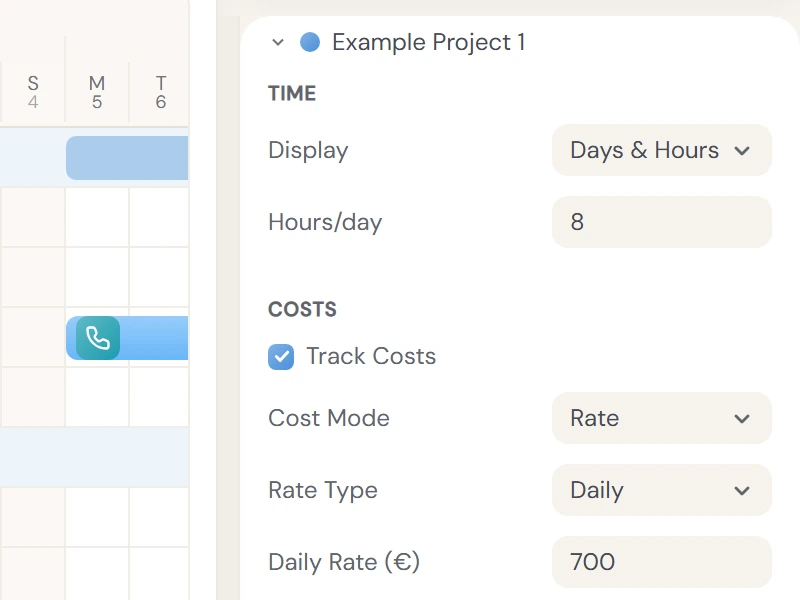
Tick Track Costs to add cost lines to the Overview and a Cost column to the list. Cost Mode is Rate (time times a rate) or Budget (a total to count down). Rate Type is Daily or Hourly.
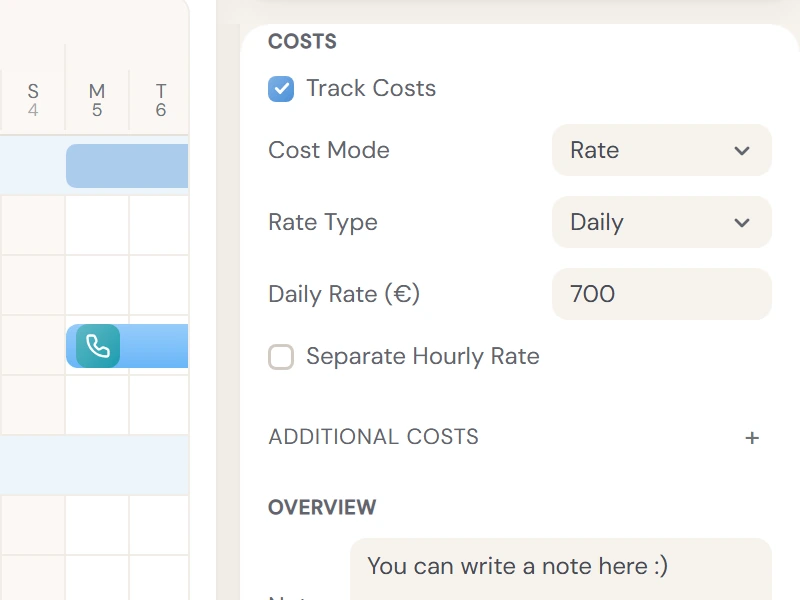
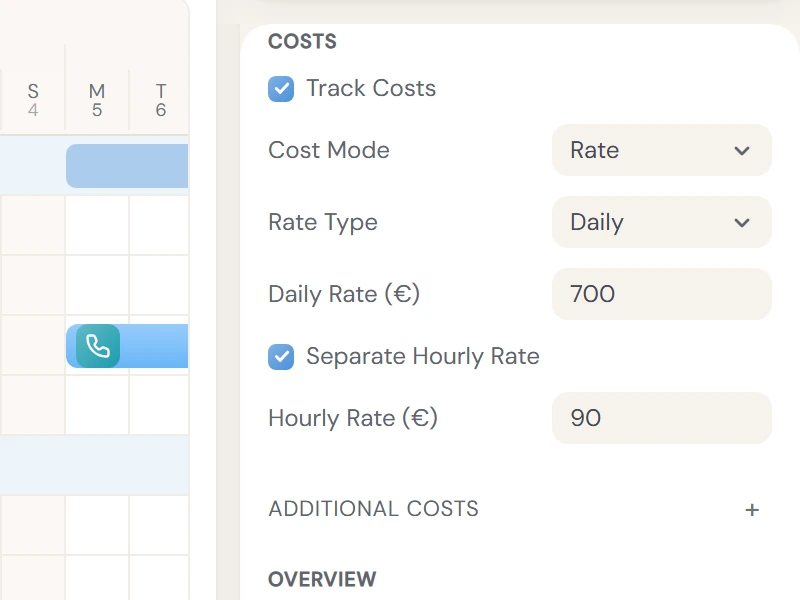
In Rate mode, enter a daily or hourly rate and the cost is time times rate. With a daily rate, tick Separate Hourly Rate to price the hours that do not make a full day at their own rate.
In Budget mode, enter the project's budget and give each activity its own rate in the Rate column that appears. The Overview counts down what is left in green, or shows the overspend in red.
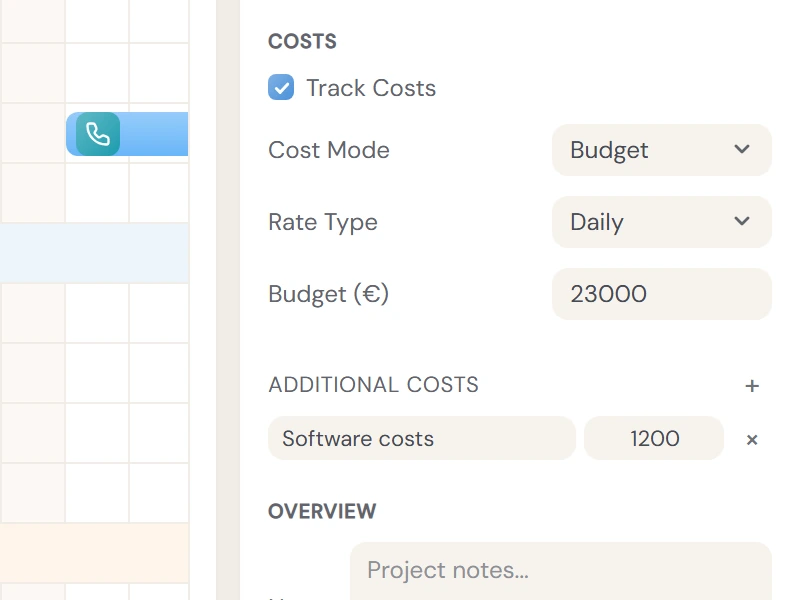
Costs that are not time: equipment, travel, a licence. Click + next to Additional Costs, name it and enter the amount. Each one is listed under the project in the Overview and added to its total.
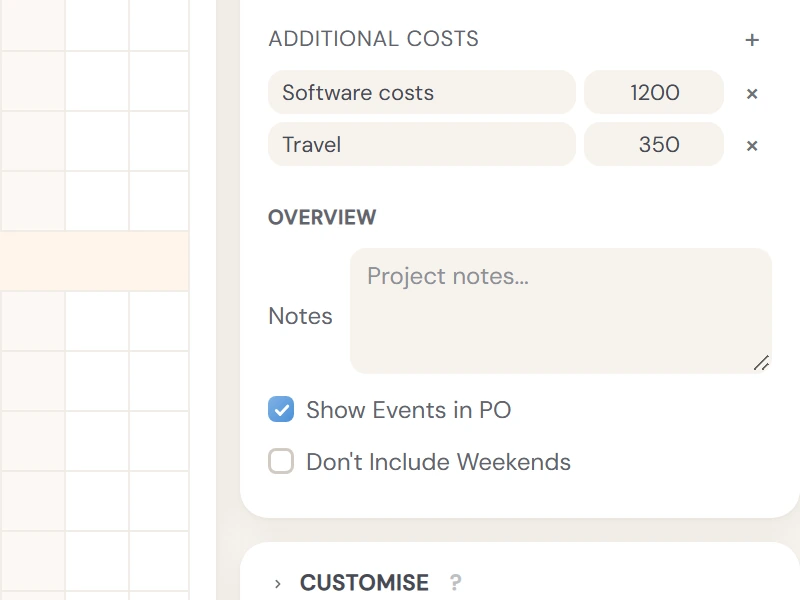
Notes adds a short note, up to 200 characters, under the project in the Overview and on exported and shared pages. Show Events in PO lists the project's events in the Overview. Don't Include Weekends leaves Saturdays and Sundays out of this project's totals.
Right-click an activity for Exclude from Overview, Exclude from Costs Only or Deduct from Costs. A small badge on the row shows which one is on.
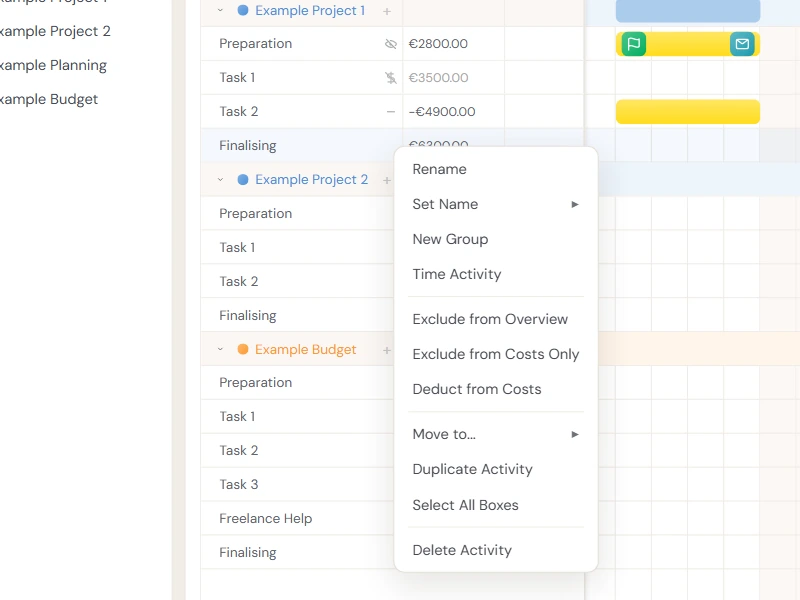
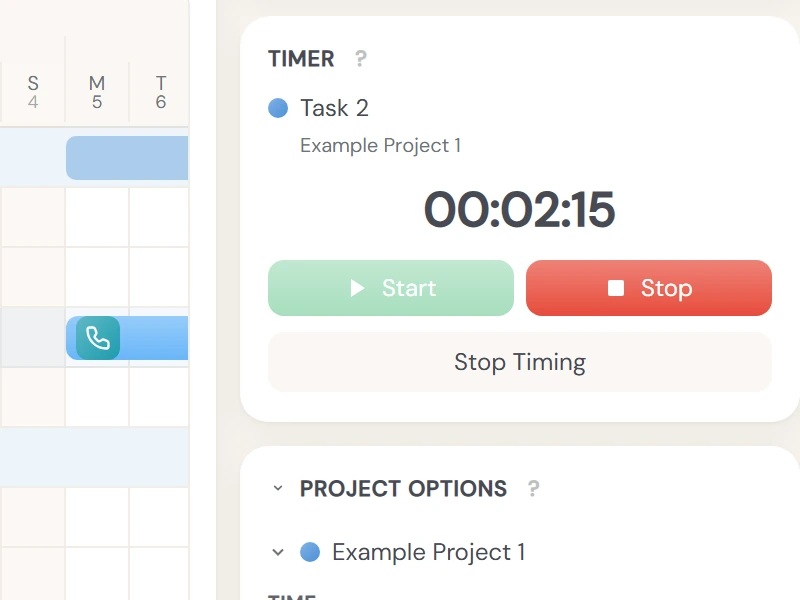
Right-click an activity and choose Time Activity. Plen writes the time into a box on today's date and shows a live counter in the sidebar. Start timing another activity and the first one is written and closed.
Share link, at the bottom of the right sidebar, is the one place for publishing and exporting. Three tabs: Planning, Calendar and Sheet. The preview on the left is exactly what will be published. Tick what to include: chart, columns, overview, costs, events and legend.
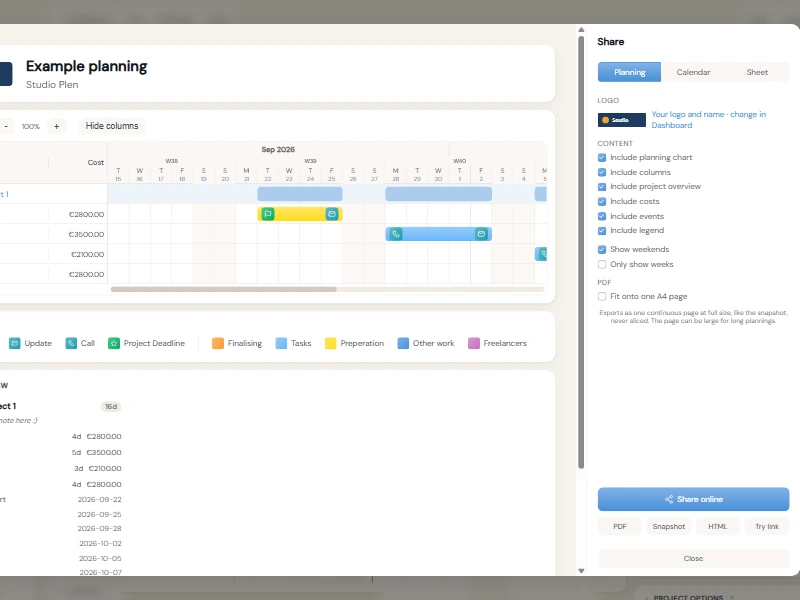
The Planning tab publishes the chart as a web page, or exports it as PDF, Snapshot (PNG) or HTML. Fit onto one A4 page scales the whole chart for printing. Only show weeks keeps a long planning compact.
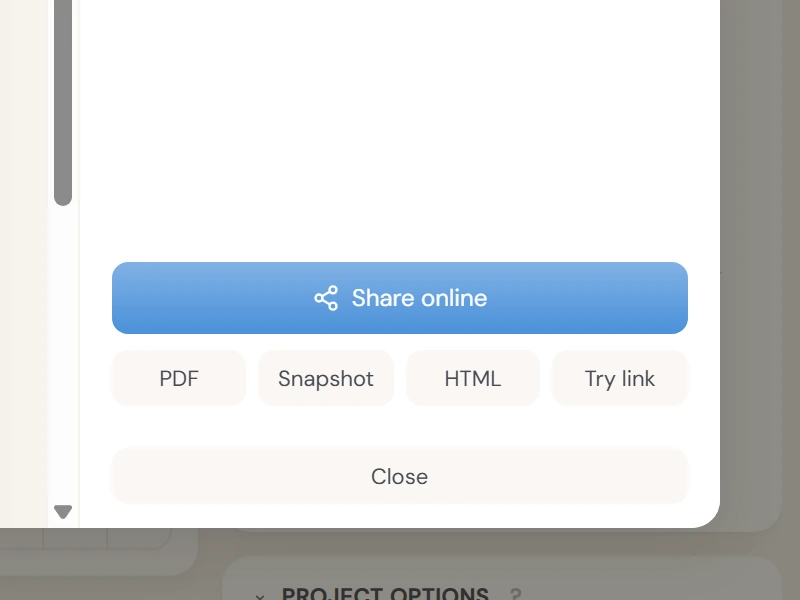
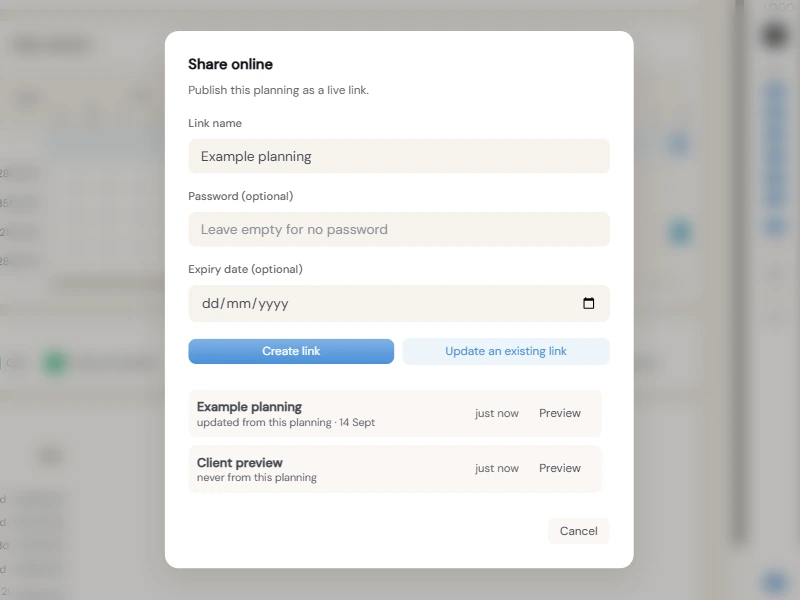
Share online creates a link your client opens in any browser, no account needed. Name it, add a password or an expiry date if you want. Publish again into the same link and the URL stays the same, so what you sent last month is never stale.
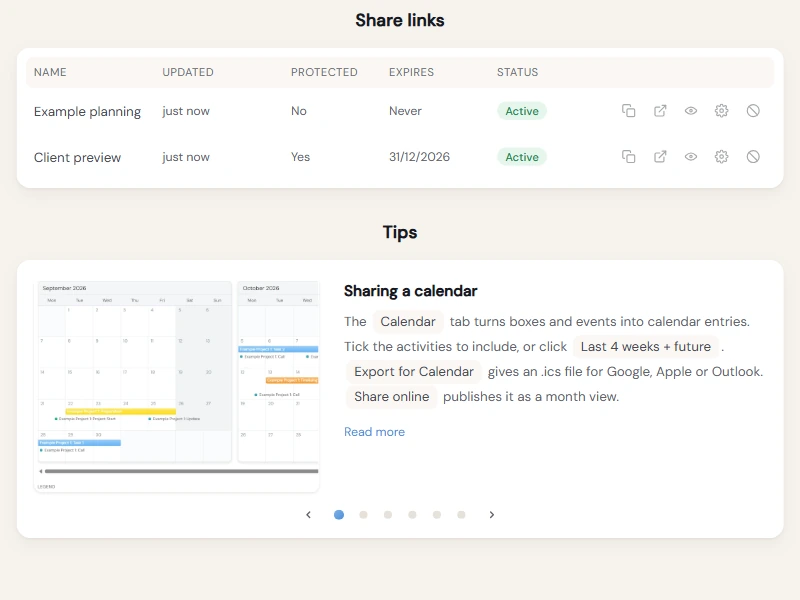
The Calendar tab turns boxes and events into calendar entries. Tick the activities to include, or click Last 4 weeks + future. Export for Calendar gives an .ics file for Google, Apple or Outlook. Share online publishes it as a month view.
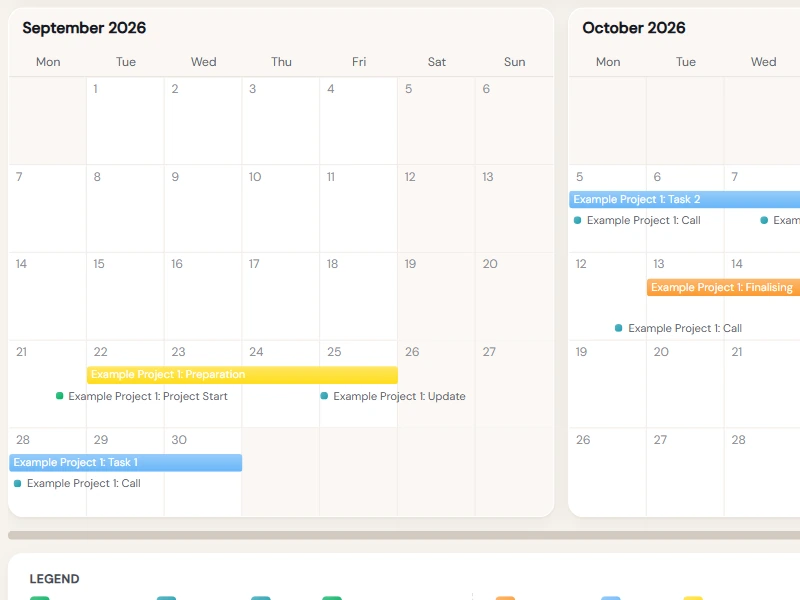
The Sheet tab exports an .xlsx file. Keep Include planning chart on for a day-by-day grid with the boxes, or turn it off for a clean list of activities with their columns, rates and costs.
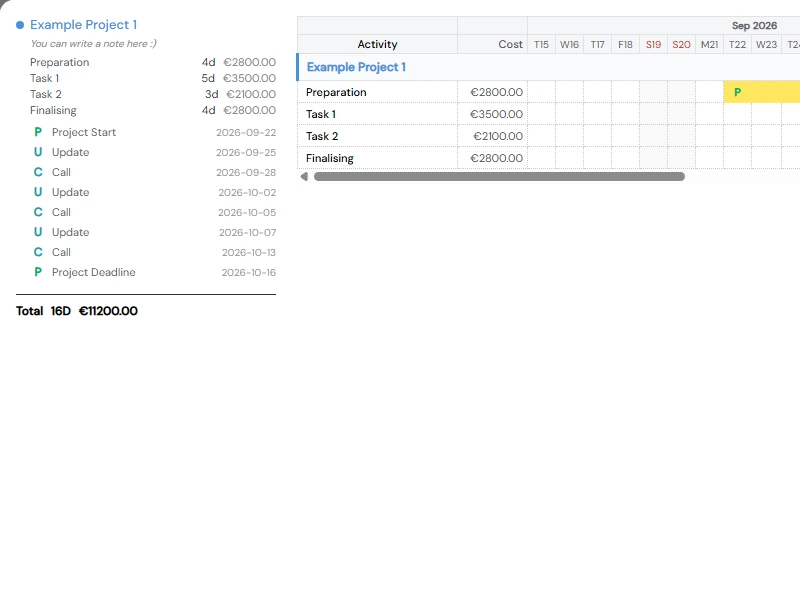
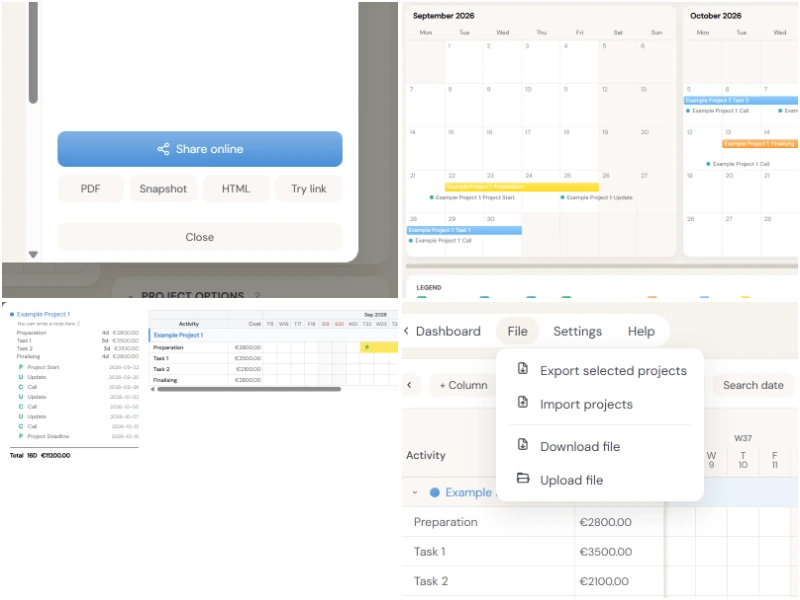
A share link is a live web page. PDF and Snapshot (PNG) are for sending and printing. HTML is a single file that works offline. Calendar gives .ics, Sheet gives .xlsx. Download file, in the File menu, is the .plen file itself and is always available.
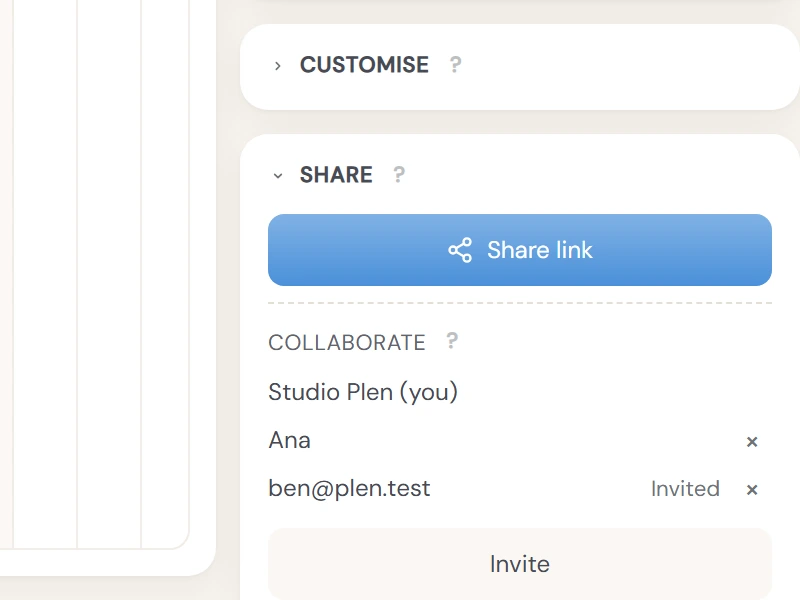
Collaborate sits under Share link, at the bottom of the right sidebar. Invite asks someone by email to edit this file with you, live. They accept in their Dashboard, under Shared with you, and can step out with Leave this file. Sharing ends when you remove them or delete the file, or when your subscription runs out.
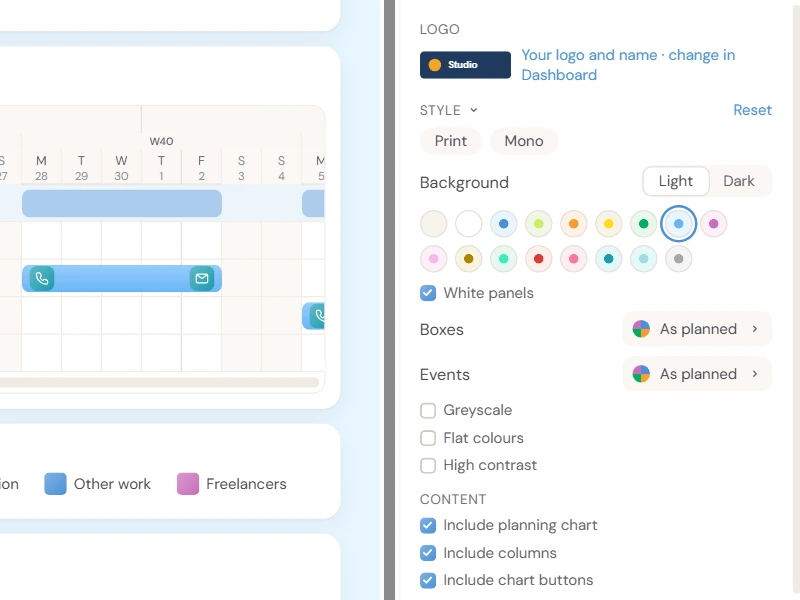
Style sits under Logo in the Share panel. Pick a background, light or dark, or turn White panels off for one plain page. Give every box or every event one colour, or use Greyscale, Flat colours or High contrast. Print and Mono set several at once. Plen remembers it per file, and the link, PDF, Snapshot and HTML all follow.
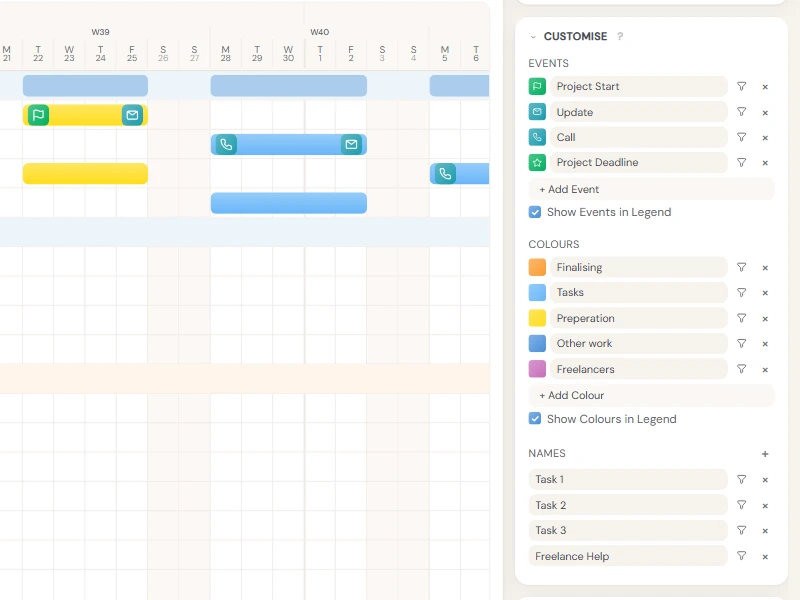
Customise, in the right sidebar, holds your legend: Events, Colours and Names. Whatever you add here appears in the legend of exports and shared pages, and it is what the Filter can filter on.
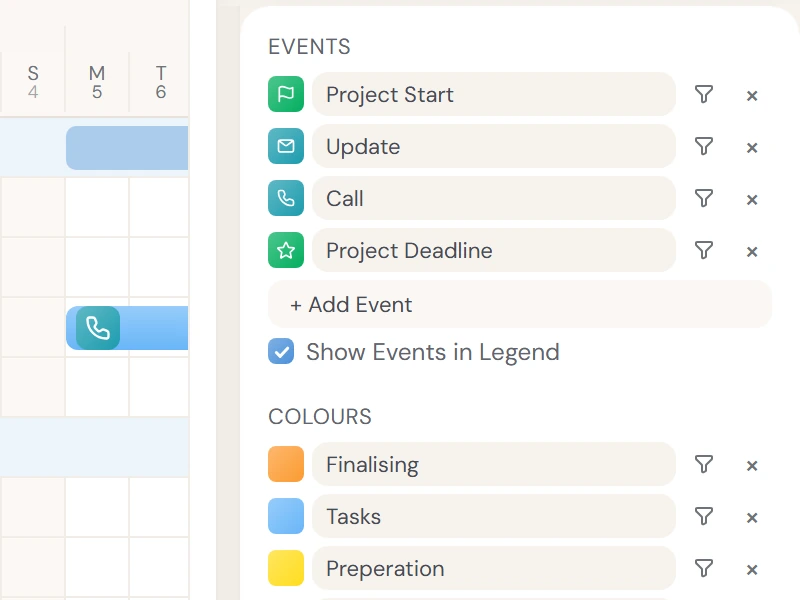
Add an event type to the Events list to give it a name and a colour of your own, for example Client call instead of the phone icon. The name shows in the Filter, the Overview and the legend.
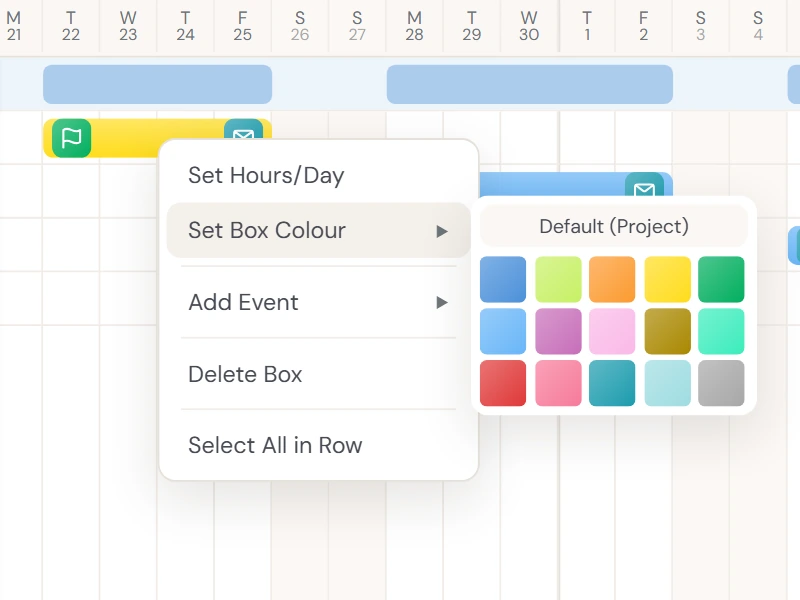
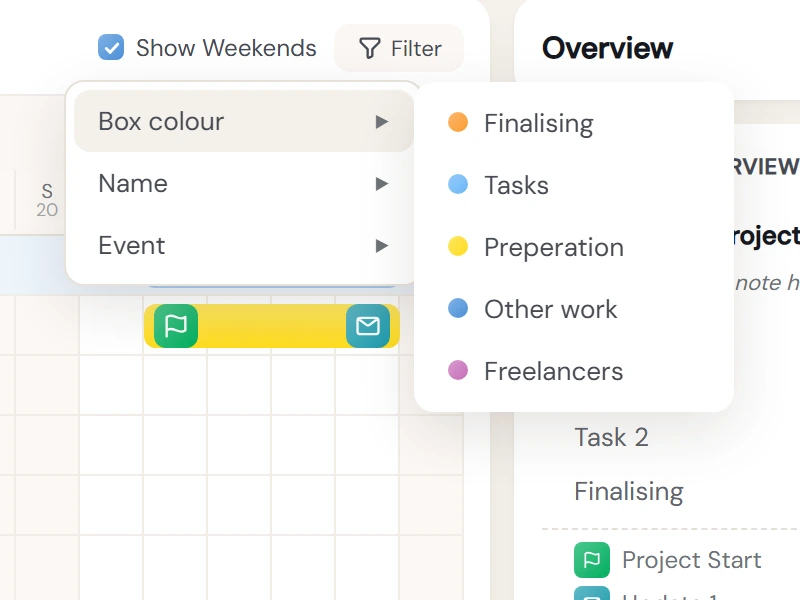
Right-click a box and choose Set Box Colour to colour it apart from its project. Add that colour to the Colours list to name it, for example Shoot days. Named colours appear in the legend and in the Filter.
Names are row names you use again and again. Add them once, then right-click any activity, group or subgroup and choose Set Name to apply one. Names are also a Filter.
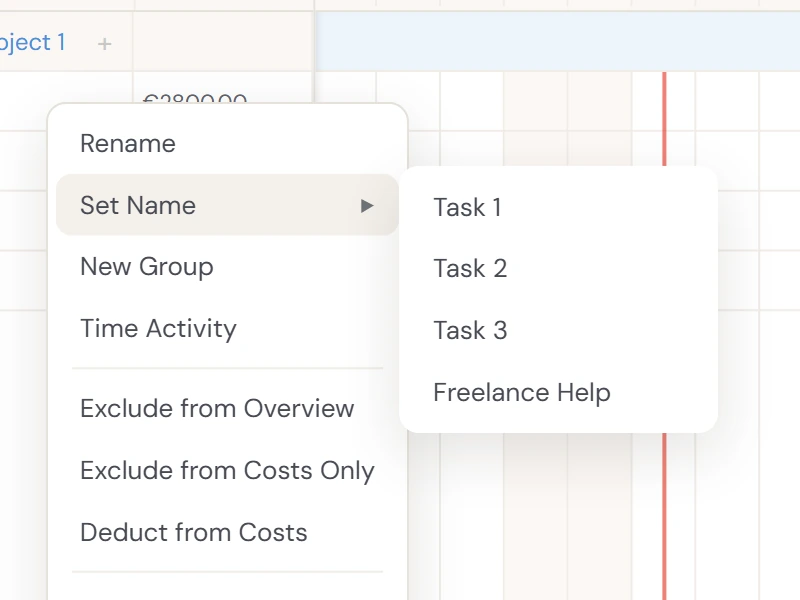
Filter, on the toolbar, shows only the rows that carry a colour, a name or an event from your legend. Boxes and events stay editable, structure is locked while it is on. Click the x on the chip to clear it.
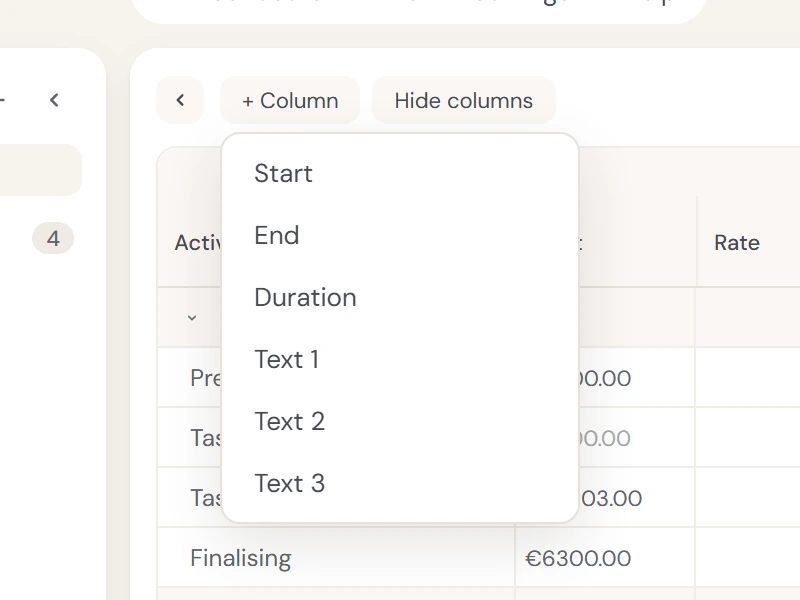
Click + Column above the activity list to add Start, End, Duration, Cost or one of three text columns. Rename a text column by editing its header, resize it by dragging its edge. Hide columns tucks them away, Activity always stays.
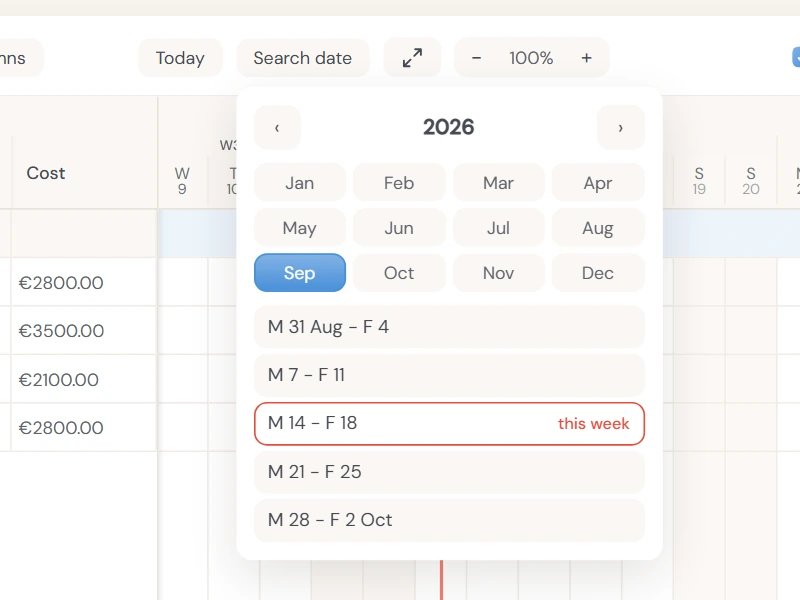
Today jumps to today. Search date opens a year, month and week picker. Ctrl + 7, 8 and 9 zoom to 150%, 100% and 25%, and the two smallest zoom levels show one cell per week. Ctrl + 0 fits everything.
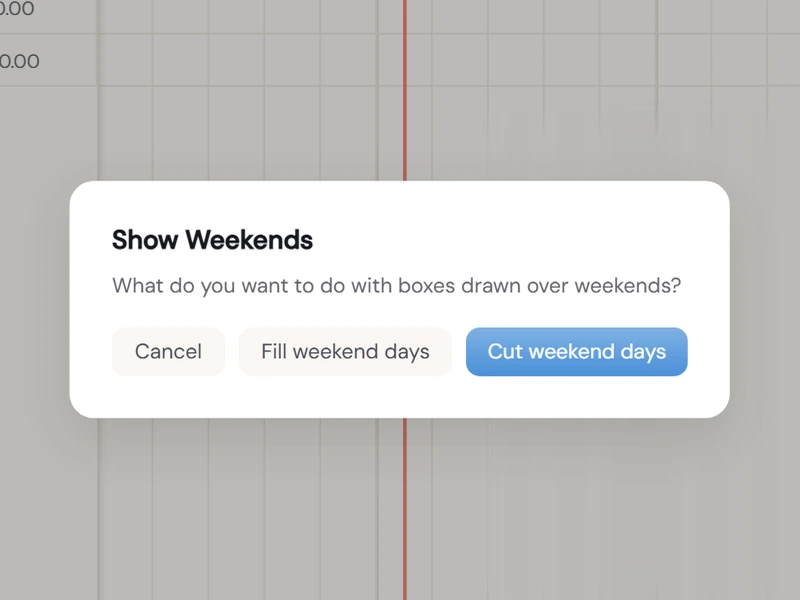
Show Weekends, on the right of the toolbar, shows or hides Saturdays and Sundays. With weekends off, dragging skips them, so a five-day box stays five working days. Turning them back on asks whether boxes drawn over a weekend should be cut or filled.
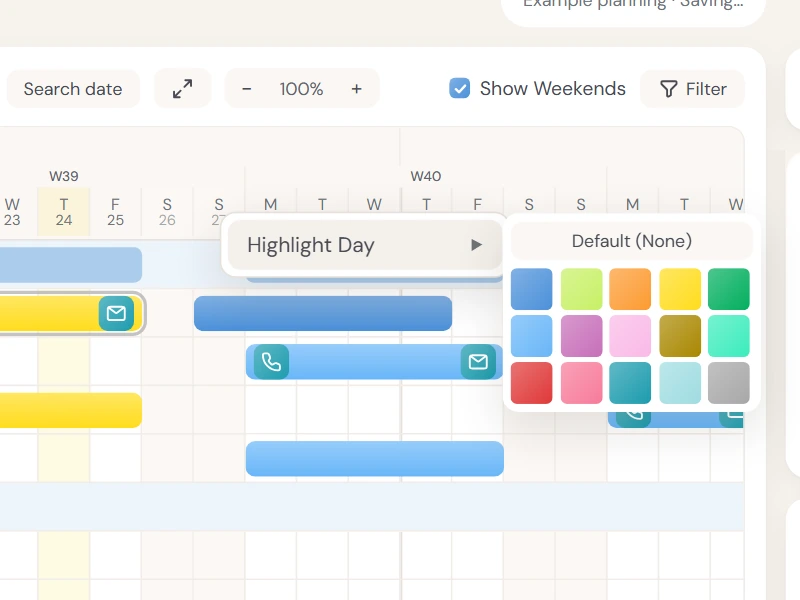
Right-click a date header and choose Highlight Day to tint that column across the whole planning. Handy for holidays, a deadline or a launch day.
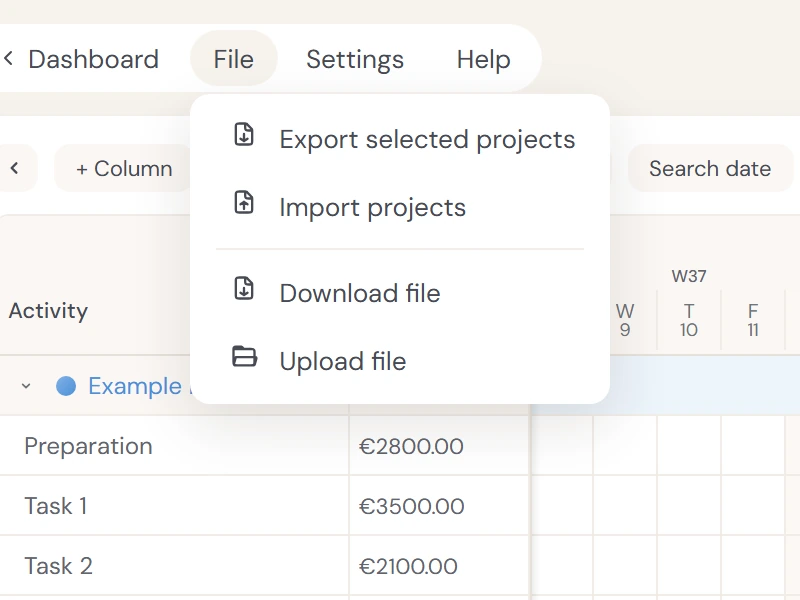
File has Export selected projects and Import projects, to move projects between files, and Download file and Upload file for the .plen file itself. Download file is always available, on every plan and as a guest.
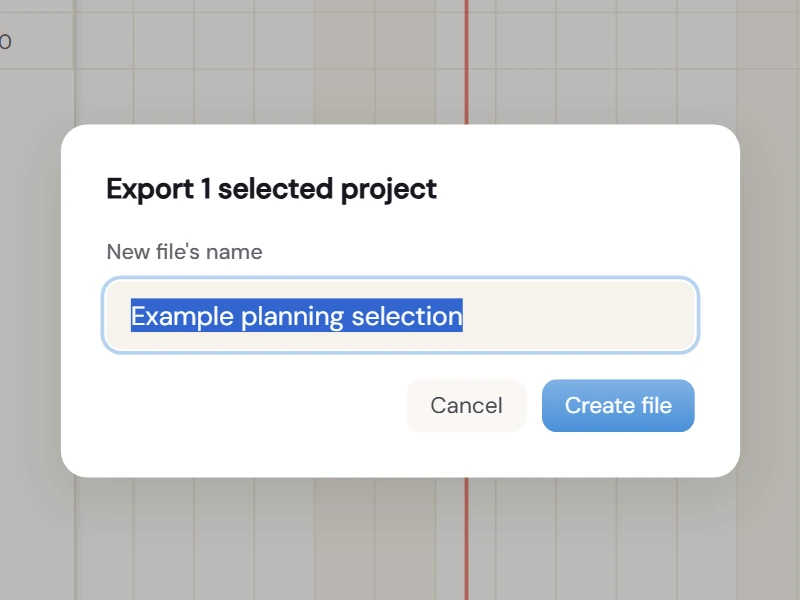
File, Export selected projects saves the checked projects as a .plen file. Import projects merges projects from another file into this one. Handy for templates.
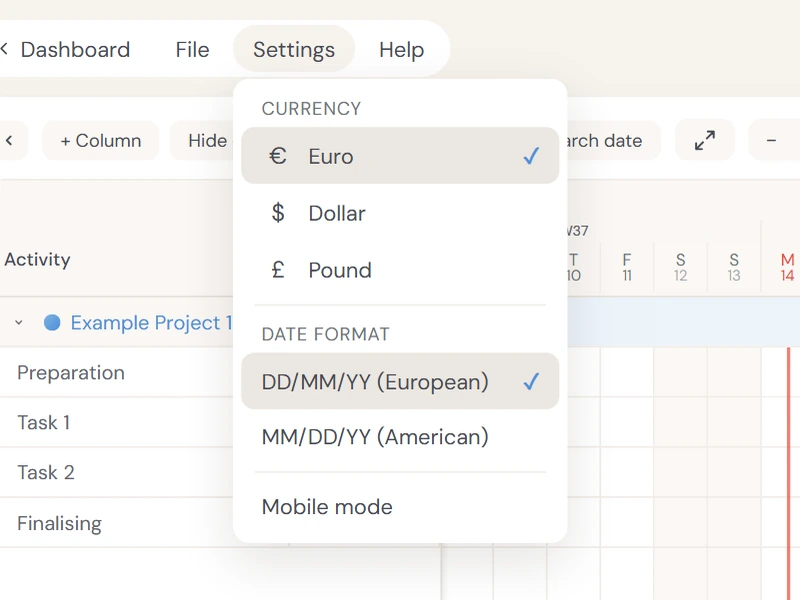
Settings sets the currency (Euro, Dollar or Pound), the date format (DD/MM/YY or MM/DD/YY) and Mobile mode. Currency and date format are saved with the planning.
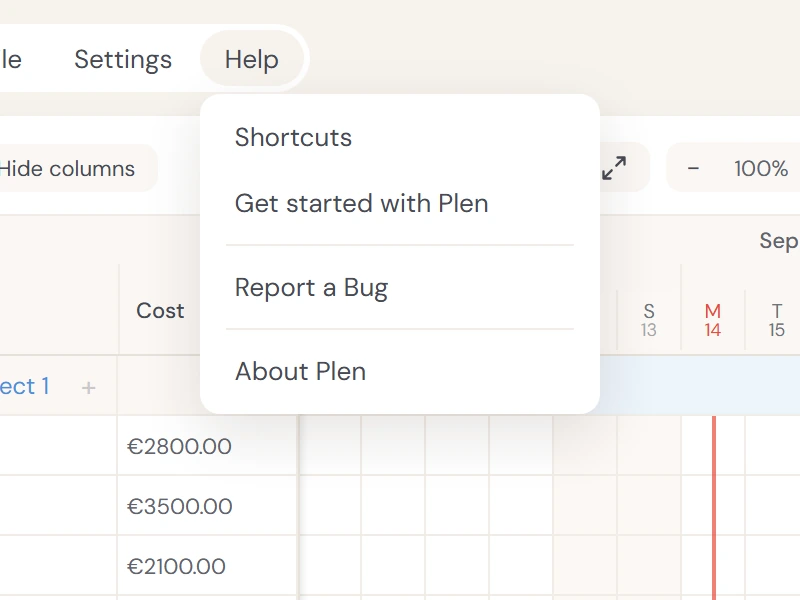
Help has Shortcuts, the full keyboard and mouse list (Touch gestures on a phone), Get started with Plen, which opens this guide, Report a Bug and About Plen.
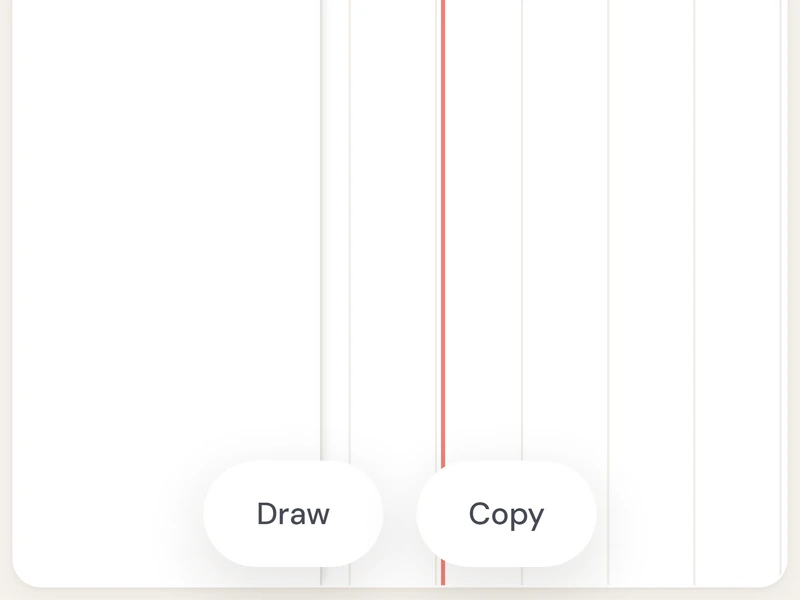
On a phone, drag to pan and pinch to zoom. Tap Draw, then drag to draw a box. Tap Copy, then drag to copy one. Press and hold a box, a row or a project for its menu. Projects and Overview open as drawers.
Mobile mode is made for checking a planning and small edits. Columns cannot be added on a phone, there is no lasso selection, and a phone opens in week view. If Plen reads your screen wrong, switch Mobile mode in Settings or on the Dashboard.
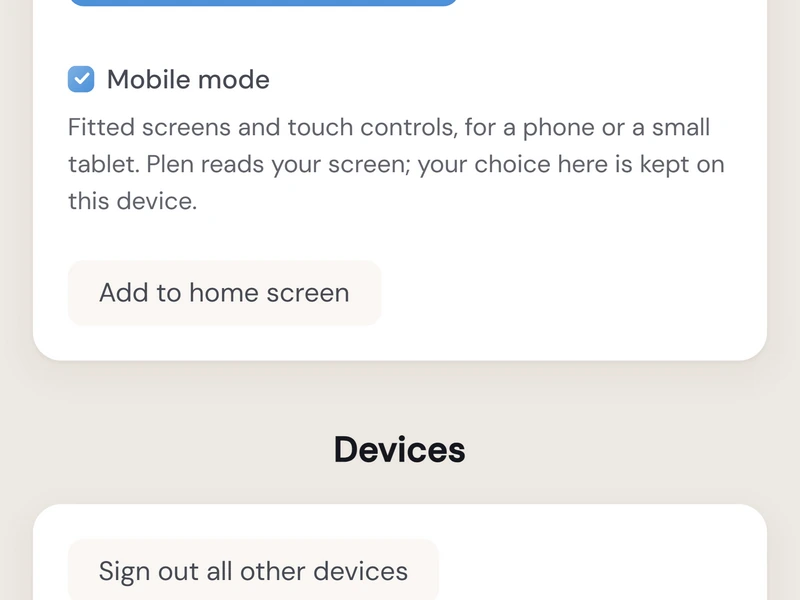
On a phone, use Add to home screen from the Dashboard's Account card. Plen then opens from an icon like an app.
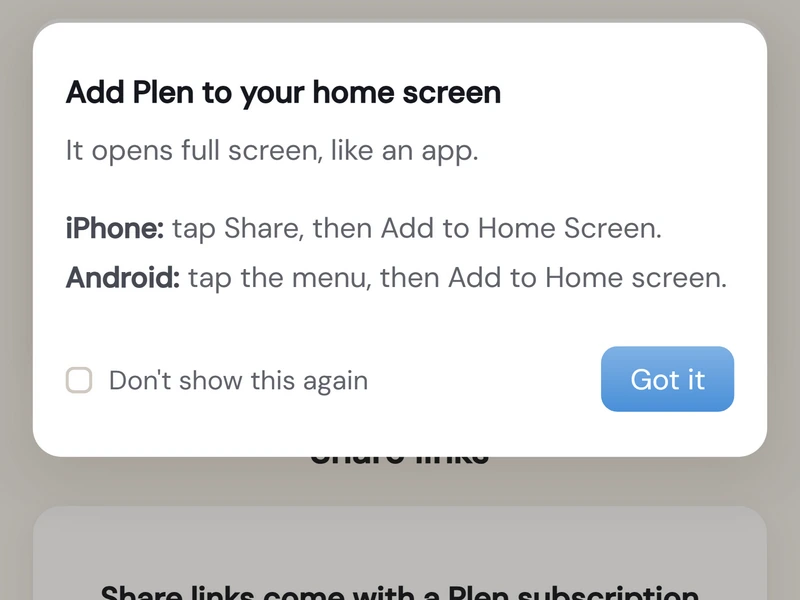
The Dashboard lists your files. New file is the main action. Open, rename or delete any file. Deleted files keeps them for 30 days with Restore and Delete permanently. The free plan holds one file, a subscription up to 200.
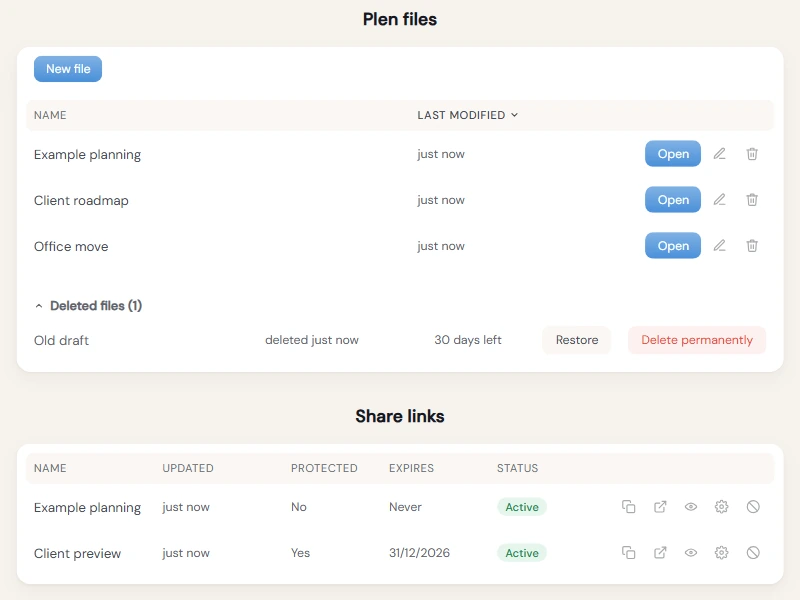
Every link you have published: name, last update, password, expiry and status. Copy URL, Preview, change its settings or Stop sharing. Changing settings keeps the page as it is; publishing again from Share link replaces it.
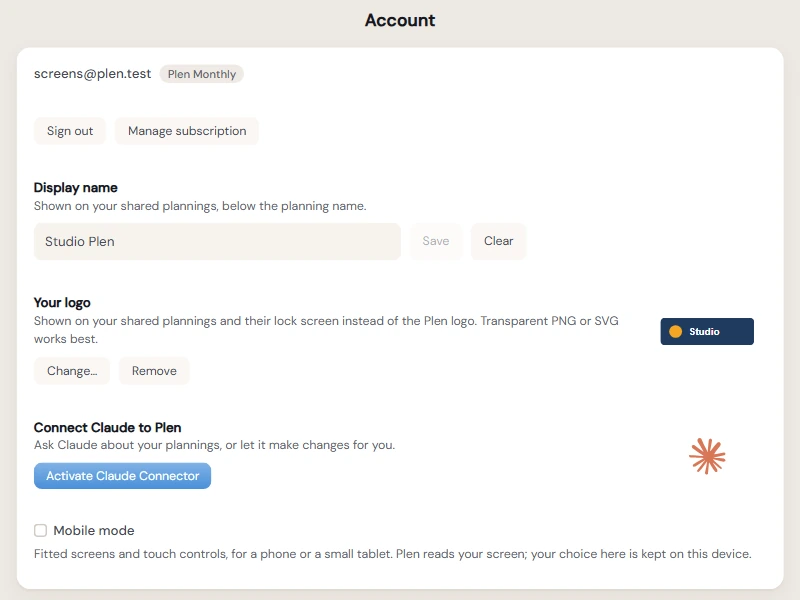
Your plan, with Manage subscription and Sign out. Display name and Your logo appear on your shared pages and their lock screen instead of the Plen logo. Mobile mode and Add to home screen are here too.
Every browser signed in to your account, and every app you connected, with when it was last seen. Sign out one, or Sign out all other devices if a laptop went missing.
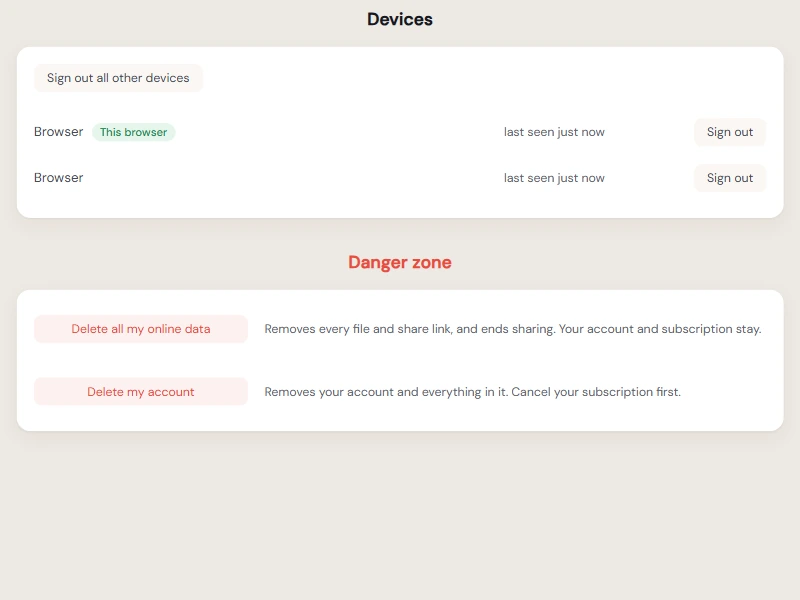
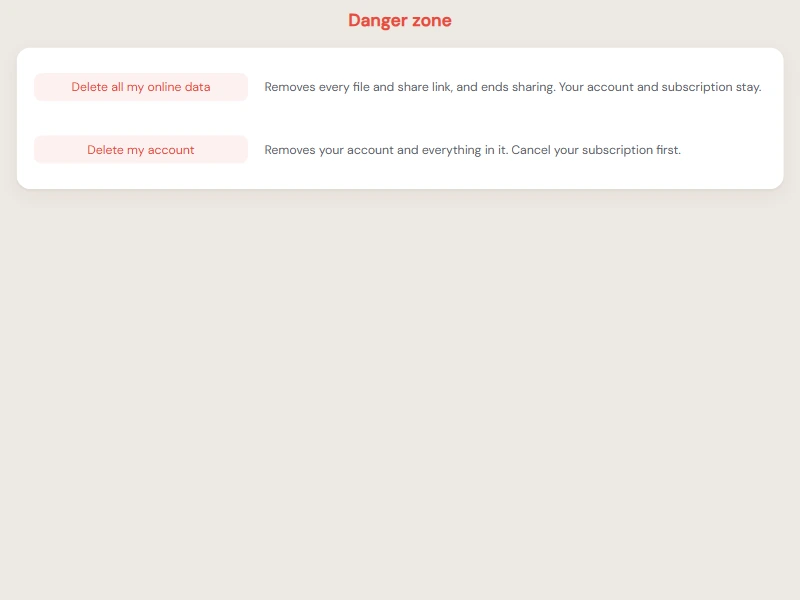
Two actions, both armed by typing DELETE. Delete all my online data removes every file and share link and keeps your account and subscription. Delete my account removes everything. Cancel your subscription first.
No tips match that search. Try a shorter word.
Plen works with Claude too: use Plen with Claude.
The ones that save the most time. Plen has the full list under Help, Shortcuts. On a Mac, use Cmd wherever this says Ctrl.
| Drawing and editing | |
| Shift + drag | Draw a box on an empty row |
| Double-click | Create a one-day box |
| Drag a box edge | Resize the box |
| Alt + drag | Copy a box or event |
| ← → | Move the selection one day |
| Shift + ← → | Move the selection seven days |
| Delete | Delete the selection |
| Selecting | |
| Ctrl + click | Add or remove one item |
| Shift + click | Select a range |
| Drag on empty grid | Selection rectangle |
| Ctrl + A | Select every box and event |
| Moving around | |
| Space + drag | Pan the timeline |
| Ctrl + scroll | Zoom in and out |
| Shift + scroll | Scroll sideways |
| Ctrl + 0 | Zoom to fit everything |
| General | |
| Ctrl + S | Save now (Plen saves as you work) |
| Ctrl + Z | Undo |
| Ctrl + Shift + Z | Redo |
| Ctrl + C / Ctrl + V | Copy and paste |
| Escape | Deselect, or close what is open |